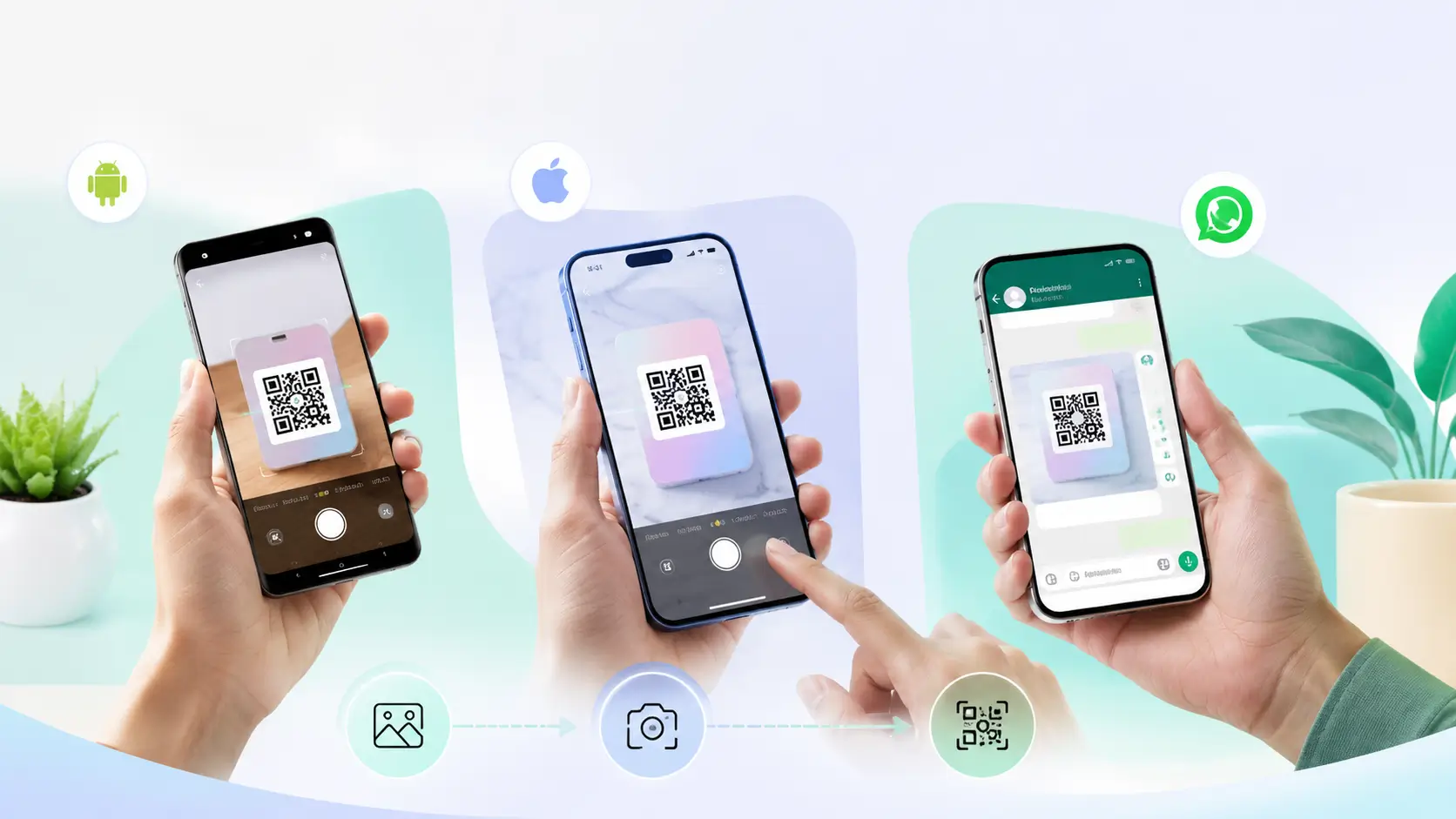

You can scan QR code from image files without installing anything: on Android, open the picture in Google Photos and tap the Lens icon; on iPhone, open it in Photos and press and hold the code. Both read the QR straight out of the saved image — screenshot, WhatsApp photo or camera shot alike.
That covers most cases in one line — but the details differ by phone, by app, and by how the image reached you. Here is how to scan QR code from image files in every situation, plus what to do when the code refuses to read.
How do I scan a QR code from an image on Android?
Google Lens handles QR scanner from image duty on nearly every Android phone. Open the picture in Google Photos and tap the Lens icon in the bottom bar — the code is detected in a second and the link appears as a tappable chip. The same works from inside Google Lens directly: open the Lens app or the Lens mode in the camera, and pick the image from your gallery instead of pointing the camera.
On newer phones there is an even faster route: long-press the home button or navigation bar to trigger Circle to Search while the image is on screen, and circle the code. Either way, pulling a QR from image files is a stock feature now — no third-party scanner app needed.
How do I scan a QR code from a photo on iPhone?
Open the picture in the Photos app and press and hold directly on the QR code — iOS recognises it and offers to open the link. The Photos app doubles as a Photos QR code scanner this way on every model that supports Live Text (iPhone XS and newer). The same long-press works on images inside Safari and Mail.
On older iPhones where the long-press does not respond, the fallback is the same trick Android users rely on: open the image on another screen or print, and point the normal camera at it. The camera app has read QR codes since iOS 11.
Can I scan a QR code someone sent on WhatsApp?
Yes — this is the most common version of the problem in India: a menu, a payment code or a visiting card lands in a chat as an image. Open the image full-screen in WhatsApp, then use the same tools as above: Lens icon or long-press on Android, press-and-hold on iPhone. If nothing triggers inside WhatsApp, save the image to your gallery first and scan it from Photos — ten extra seconds, works every time.
Can I scan a QR code that is on my own phone screen?
This is the classic dead end: the code is on your screen, and you cannot point your phone's camera at its own display. The answer is exactly this article — take a screenshot, then run the QR scan from image on the screenshot with Lens or Photos. What looks impossible takes three taps once you know the screenshot step.
What about scanning a QR code from an image online?
Plenty of sites let you scan QR code from image online — upload the picture, get the decoded link. They are useful on a desktop where Lens is not at hand, and any QR code reader picture upload tool from a known name does the job.
One firm caution: never upload payment QR codes, login codes or anything private to a random website. The image goes to their server, and a UPI or authentication code in a stranger's hands is a real risk. For anything sensitive, stay on-device — Lens and Photos process without the upload.
Why is the QR code in my photo not scanning?
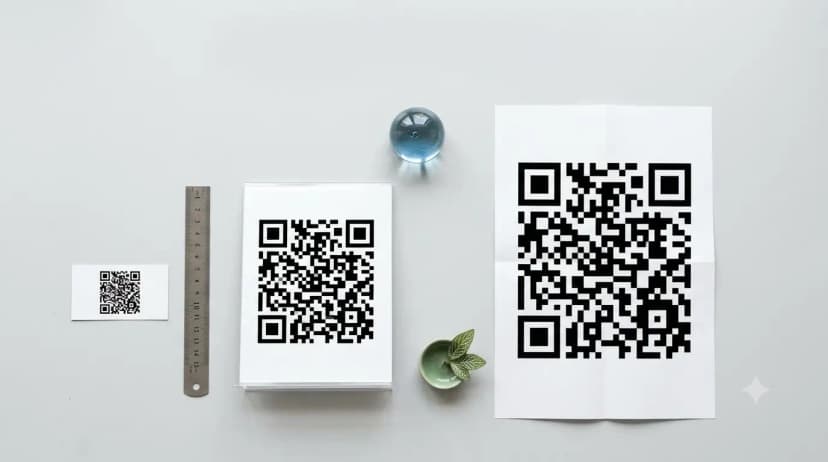
Almost always image quality. A QR photo that has been forwarded a few times on WhatsApp gets recompressed until the module edges blur; a code photographed at an angle or under glare confuses the reader; a screenshot of a tiny on-screen code may simply not carry enough pixels. Crop the image so the code fills more of the frame, raise the screen brightness, and try again. If the source file itself is low-resolution, no scanner can save it — our QR code size guide explains why low-resolution codes fail and how to export ones that never do.
If the image you keep scanning is someone's visiting card, that is the modern card working as designed — the code travels as a picture and still opens the profile. The tap-vs-scan trade-offs are in our NFC vs QR business card comparison, and if you want a card of your own that people can scan from a photo, a QR business card does exactly that.
The short version: to scan QR code from image files, you already have everything you need — Lens on Android as your QR reader from image, Photos on iPhone, and a screenshot for the on-screen case. Save the random scanner apps for a phone that has neither. If it is an NFC tag rather than a QR code giving you trouble, "no supported app for this NFC tag" has its own fix.