
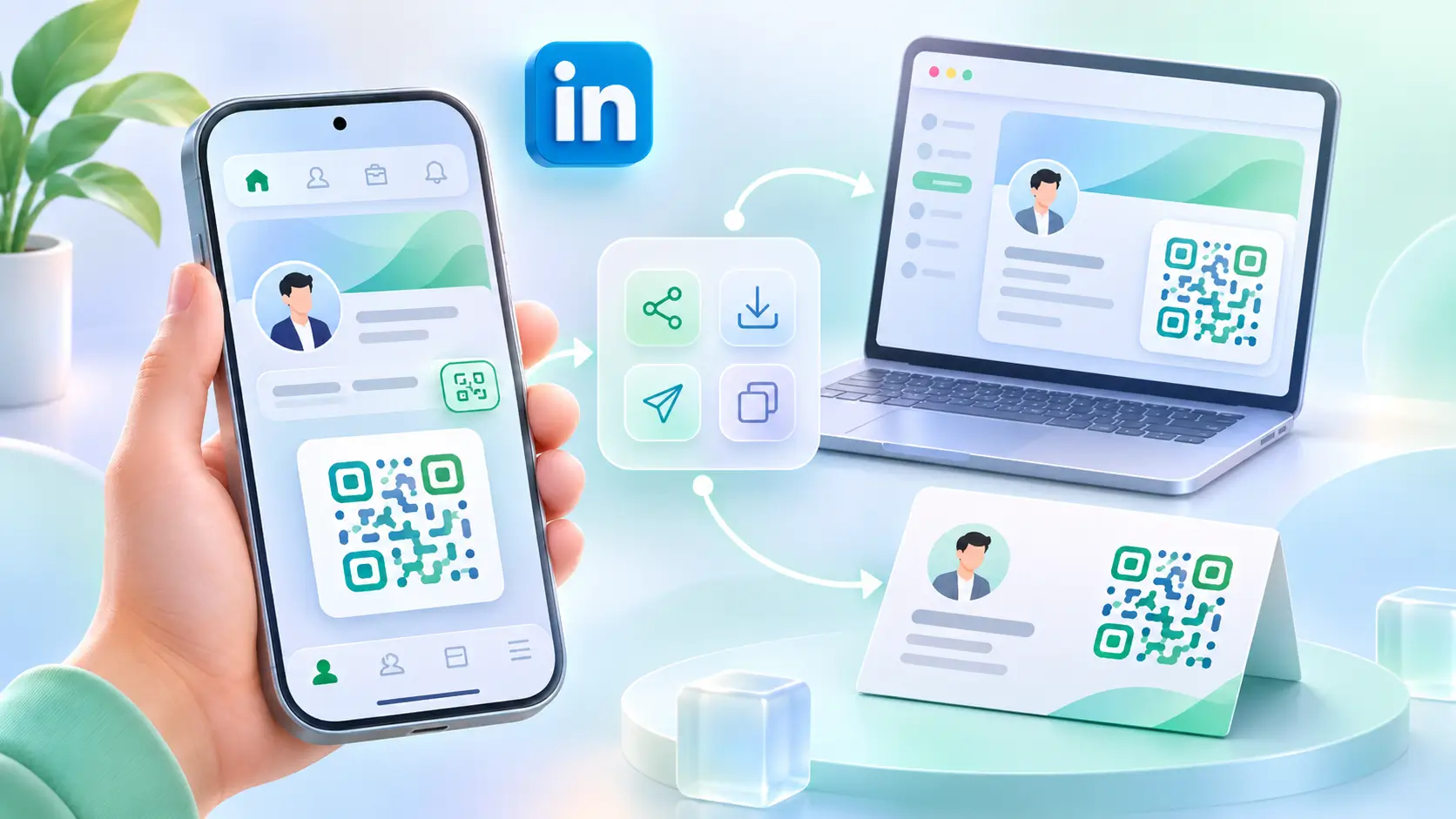
Your LinkedIn QR code is a square code that opens your LinkedIn profile when someone scans it. It lives in the LinkedIn app, takes about ten seconds to find, and saves you from spelling out a long profile link at a meeting or an event. This guide shows where to find it, how to save and share it, what to do on a laptop, and how to put it on your visiting card.
TL;DR
Open the LinkedIn app, tap the search bar, then tap the QR icon on the right. Your code is on the My code tab. Save it to your photos and share it on WhatsApp, in your resume or on your visiting card. On a laptop there is no built-in code, so copy your profile URL into a LinkedIn QR code generator instead.
Before you start
You need only a few things, and most people already have them.
What you need
- The LinkedIn app on your phone, signed in to your account
- Your public profile URL, if you plan to make the code on a laptop
- A clear idea of where the code will go: phone screen, resume, slide or printed card
Step 1: Open the QR icon in the LinkedIn search bar
Here is how to get LinkedIn QR code on your phone. Open the LinkedIn app on your iPhone or Android phone and tap the search bar at the top of the home screen. A small QR icon appears on the right side of the search box. Tap it. This is the same screen on both phones, so if you have been asking where is LinkedIn QR code in the app, it is right there behind the search bar.
Step 2: Open My code and save it
The QR screen has two tabs. My code shows your LinkedIn profile QR code, which works only for your account, and the other tab opens the camera to scan someone else's code. On My code, use the save or share option to keep a copy in your photos. A plain screenshot also works, as long as nothing else on the screen covers the code.

Step 3: Share your LinkedIn QR code
Once the code is saved, you can use it wherever people need to find you on LinkedIn:
- Show it on your phone at a meeting, so the other person scans it with their camera or their own LinkedIn app.
- Send the saved image on WhatsApp to a contact or a group.
- Add it to your resume. A LinkedIn QR code for resume use sits best next to your phone number and email.
- Put it in your email signature. Our email signature generator helps you build one that links to your profile.
That is how to share LinkedIn profile via QR India-wide without typing a long link, and the person scanning always lands on your current profile page.
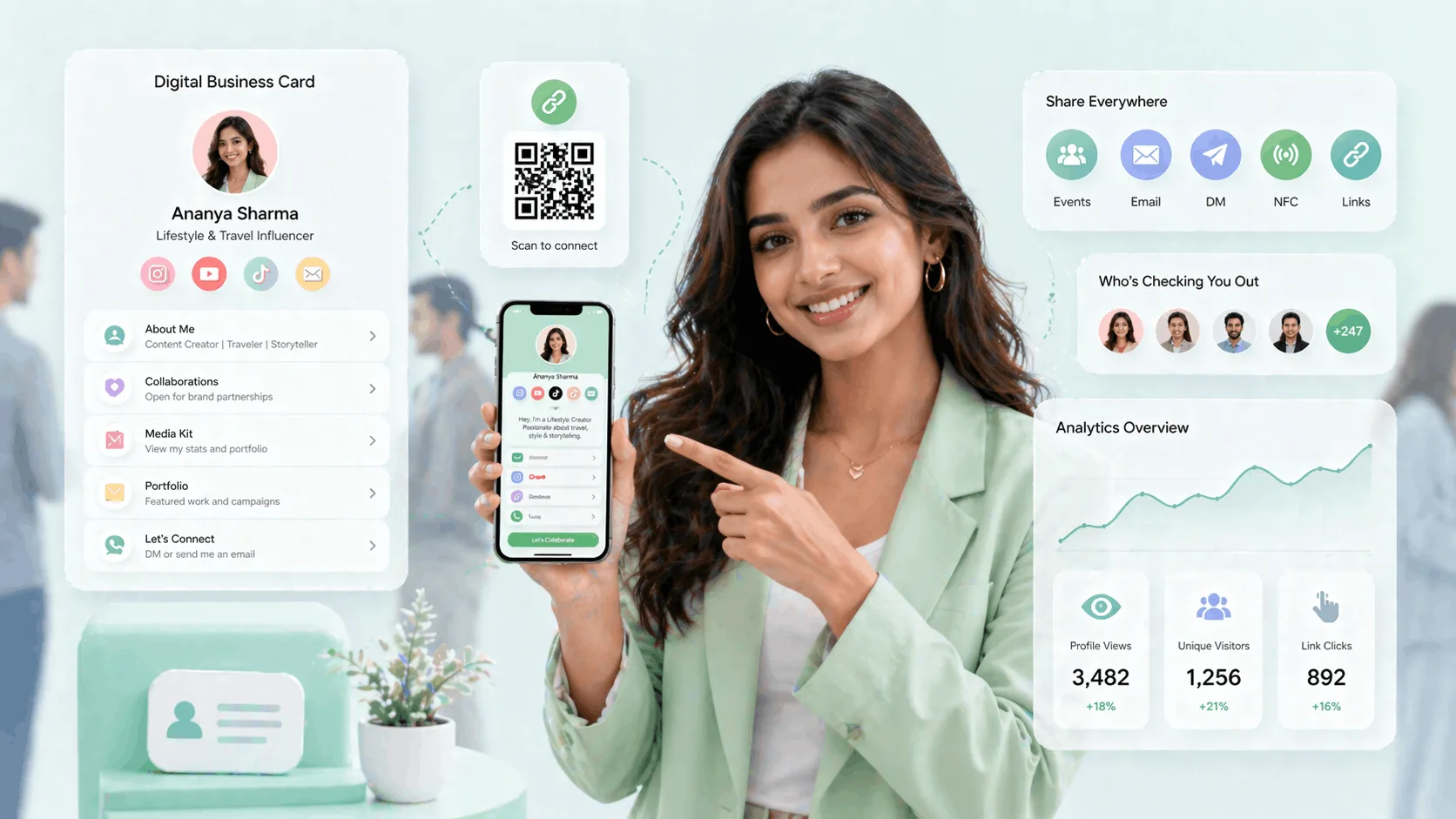
If you want one QR for more than LinkedIn, a free ProfileTap profile helps. Add your LinkedIn link next to your phone, WhatsApp and website, and the profile gives you its own QR code to show on your phone, plus a link you can copy into any chat. Whoever scans it sees all your links, not only LinkedIn.
The mistake everyone makes
Sending a screenshot full of notifications, battery icons and chat bubbles around the code. Crop it, or use the save option, so the code is the only thing in the picture and scans first time.
Step 4: On a laptop, use a LinkedIn QR code generator
LinkedIn's built-in code is a mobile app feature, so there is no LinkedIn QR code on desktop. If you are making a resume or a slide on a laptop, open your profile, copy your public profile URL from the address bar, and paste it into any LinkedIn QR code generator. Most free generators offer a LinkedIn QR code download as a PNG for screens or an SVG for print.
One thing to know: a generator only stores the link you gave it. If you later change your custom LinkedIn URL, a printed generator code will still point to the old one, so make the code after your URL is final.
Step 5: Put your LinkedIn QR code on your visiting card
A LinkedIn QR code on business card designs usually sits on the back, at least 2 cm wide so a phone can read it from a normal distance. Our QR code size guide has the exact sizes for cards and posters.
The catch with printing a LinkedIn-only code is that the card now does one job. If you also want people to reach your phone, WhatsApp and website, a digital visiting card works better: your LinkedIn link sits on the same profile as everything else, the QR on the card opens that profile, and an NFC chip lets people tap instead of scan. A social media NFC card is built for exactly that.
Which LinkedIn QR code should you use?
| Option | What it opens | Can you change it later? | Can it hold more than LinkedIn? |
|---|---|---|---|
| LinkedIn's own code (My code) | Your LinkedIn profile | It follows your LinkedIn account | No |
| Free LinkedIn QR code generator | The link you pasted | No, it is fixed once printed | No |
| ProfileTap card with QR and NFC | Your full profile, with LinkedIn as one link | Yes, edit the profile from your phone | Yes: phone, WhatsApp, links and more |
Honest comparison
LinkedIn's own code is free and quick, and for many people it is all they need.
Where ProfileTap is clearly easier
- One card shares LinkedIn, phone, WhatsApp and website together
- Details change on the profile, not on the printed card
- People can tap the card instead of scanning
- The same profile link also works in your resume and email signature
Where LinkedIn's own QR code is enough
- You only ever share your LinkedIn profile
- You show the code on your phone rather than printing it
- Everyone you meet already uses LinkedIn
- You want something free with no setup at all
Common mistakes
Avoid these four
- Printing the code smaller than about 2 cm, which older phones struggle to read
- Making a generator code before your custom LinkedIn URL is final
- Placing the code on a busy background or a dark photo with poor contrast
- Sharing only a LinkedIn code with people who would rather call or WhatsApp you
You're done
You now know where your LinkedIn QR code is, how to save and share it, and how to use it on a laptop or a card. If you want one card that shares LinkedIn and every other way to reach you, create a free ProfileTap profile, add your LinkedIn link to it, and pair it with a ProfileTap card that people can tap or scan.