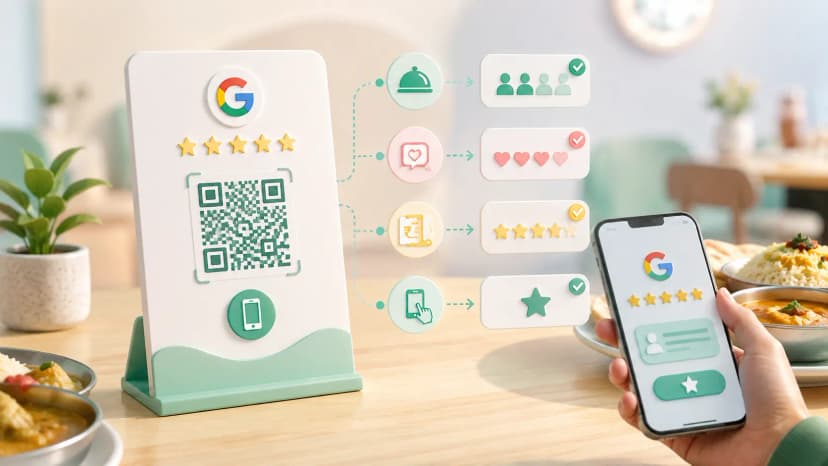

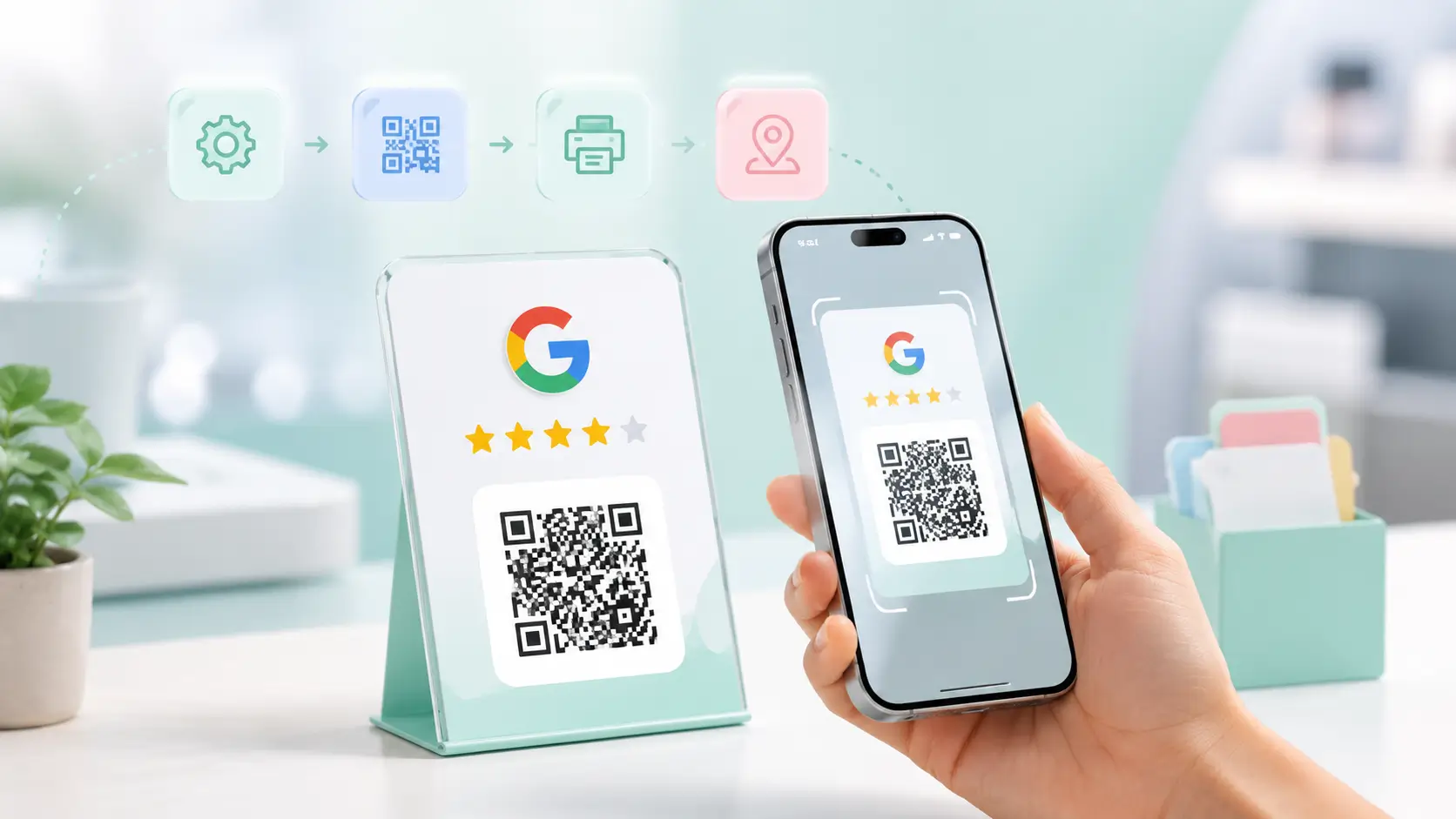
A Google review QR code takes about ten minutes to set up: copy your review link from your Google Business Profile, turn it into a code, and print it at least 2 to 3 cm wide with a clear white margin. If you searched how to create Google review QR code India, the setup is the easy part; getting it scanned every day is where most shops lose reviews. This guide walks through the five steps, then the parts nobody mentions: the print size that fails at a busy counter, the glossy surface that reflects light, and the placement customers walk straight past.
TL;DR
- Use the review link from Ask for reviews, never your Maps URL; the wrong link is the most common reason a code goes nowhere.
- Generating the code is free; download SVG, print black on white at 300 DPI with a white margin.
- Size rule: about one tenth of the scanning distance. 3 cm at the counter, 30 cm on a poster.
- Put it where the customer is standing still and already happy, with one line of text saying what it does.
Before you start
Google reviews attach to a verified Google Business Profile, so without one there is no review page for the code to open. If the profile is not set up yet, create it, complete the verification step Google asks for, and wait until the listing is live; only then does the review link exist. Service businesses with no walk-in address can register a service area instead of a street address and the link works the same way once verified.
What you need
- A verified Google Business Profile and the Google account that manages it.
- Any QR code generator that accepts a URL and exports SVG.
- A printer or local press that can print at 300 DPI, and two phones to test with.
Step 1: Find your Google review link
Sign in to Google Business Profile with the account that manages your listing, select the business, and look for the Ask for reviews or Get more reviews option. Copy the short link Google shows you. That link opens your review box directly, which is exactly what the QR code needs to point at.
Do not use your Google Maps listing URL or a search result URL. Those open your business page and leave the customer hunting for the review button, which is where most people give up. Every method of finding the right link, and the fixes when it misbehaves, is in the Google review link guide.
Step 2: Turn the link into a QR code
Paste the review link into a Google review QR code generator, choose a URL or link type code, generate it, and download the result. Any Google review QR code generator free to use will get you this far; the code only starts earning reviews once it is the right size and in the right place. Keep it plain black on white unless you have a reason not to. Heavy colour, low contrast, gradients and a logo dropped into the middle all cut the scan rate, especially in dim shop lighting.
That is how to make Google review QR code files for any shop, salon, clinic or restaurant, and the same route covers how to get Google review QR code artwork for a franchise: one verified listing, one link, one code per branch.
Step 3: Download the right file
How to download Google review QR code files is where print quality is won or lost. Choose SVG whenever the option exists, because SVG stays sharp at any size. If only PNG is offered, take the largest resolution available so the printer is not stretching a small image. Never scale a small PNG up to fill a bigger space.
Step 4: Print it at a size that scans
A practical minimum for a counter code is about 2 x 2 cm, and 3 x 3 cm is more forgiving. The working rule is that the code should be roughly one tenth of the distance it will be scanned from: a code read from 30 cm away needs about 3 cm, and a poster read from 3 metres needs about 30 cm. Leave a clear white margin on all four sides; printing right up to the edge of a sticker or trapping the code between text is one of the most common reasons it fails. Print at 300 DPI or higher, on a matte surface.
| Where it will be read from | Minimum code size | Format to print from |
|---|---|---|
| Counter or table, 20 to 30 cm | 2 to 3 cm | SVG at 300 DPI |
| Wall or standee, 1 metre | 10 cm | SVG |
| Poster or window, 3 metres | 30 cm | SVG |
| Receipt or bill, in hand | 1.5 to 2 cm | High-resolution PNG if the billing software cannot take SVG |
Step 5: Place it and test it
Put it where the customer is already standing still and already happy: the billing counter, the payment point, or the table after the meal. A code at the exit gets walked past; a code next to the card machine gets scanned while the customer waits for the receipt. Add one short line above it so people know what it does, such as "Scan to review us on Google"; a bare code with no label is ignored. Staff asking once, politely, at the right moment lifts the scan rate more than any design change.
Then test the printed code on two different phones before it goes on display, and open the link on its own in a browser once. If the link opens the review box but the printed code will not scan, the problem is the print; if the link opens your business page instead of the review box, you copied the wrong URL and need to go back to Step 1.
The step people get wrong
Printing a code that was downloaded as a small PNG and scaled up to fill a standee. It looks fine from a metre away and fails at the counter because the edges of every module are blurred. Go back to the generator and export SVG; it takes thirty seconds and saves a reprint.
Printed sticker, standee or review card: which lasts?
A paper sticker works, but on a busy counter it curls, gets wet and stops scanning within a few months. A printed standee or a review card holds up longer and looks deliberate rather than improvised. If you would rather skip the design and print step, ProfileTap ships the code pre-linked to your review page on a Google review QR code standee or card, paid once with a GST invoice and no monthly fee. Chains and franchises order the same cards as a bulk batch, each one encoded to its own branch's review page. What goes around the code on the card itself is covered in the Google review card design guide.
Where a standee or review card earns its place
- Matte, rigid and sized for the counter, so it scans every time
- Looks deliberate and gives staff something to point to
- Pre-linked to your review page, so there is no link-copying mistake
- One-time cost with a GST invoice, nothing recurring
Where a printed sticker falls short
- Curls, gets wet and stops scanning within months on a busy counter
- Looks improvised, so staff forget to point at it
- A static code cannot be repointed if you move or rebrand; reprint required
- Fine for a trial week before you commit to hardware
Common mistakes
Why a Google review QR code stops working
- Printed too small for the distance; apply the one-tenth rule.
- No white margin, or text crowding the edges.
- A low-resolution PNG stretched to fit.
- A glossy surface reflecting the shop lights straight into the camera.
- The wrong link, usually the Maps URL. Test the link in a browser first and the fault is obvious.
You're done
That is the complete answer to how to create Google review QR code India, end to end. Once the code is up, the question usually shifts from setup to volume, which is covered in how to get more Google reviews, and the Google review QR code page has the ready-made hardware if you want to skip the printing.