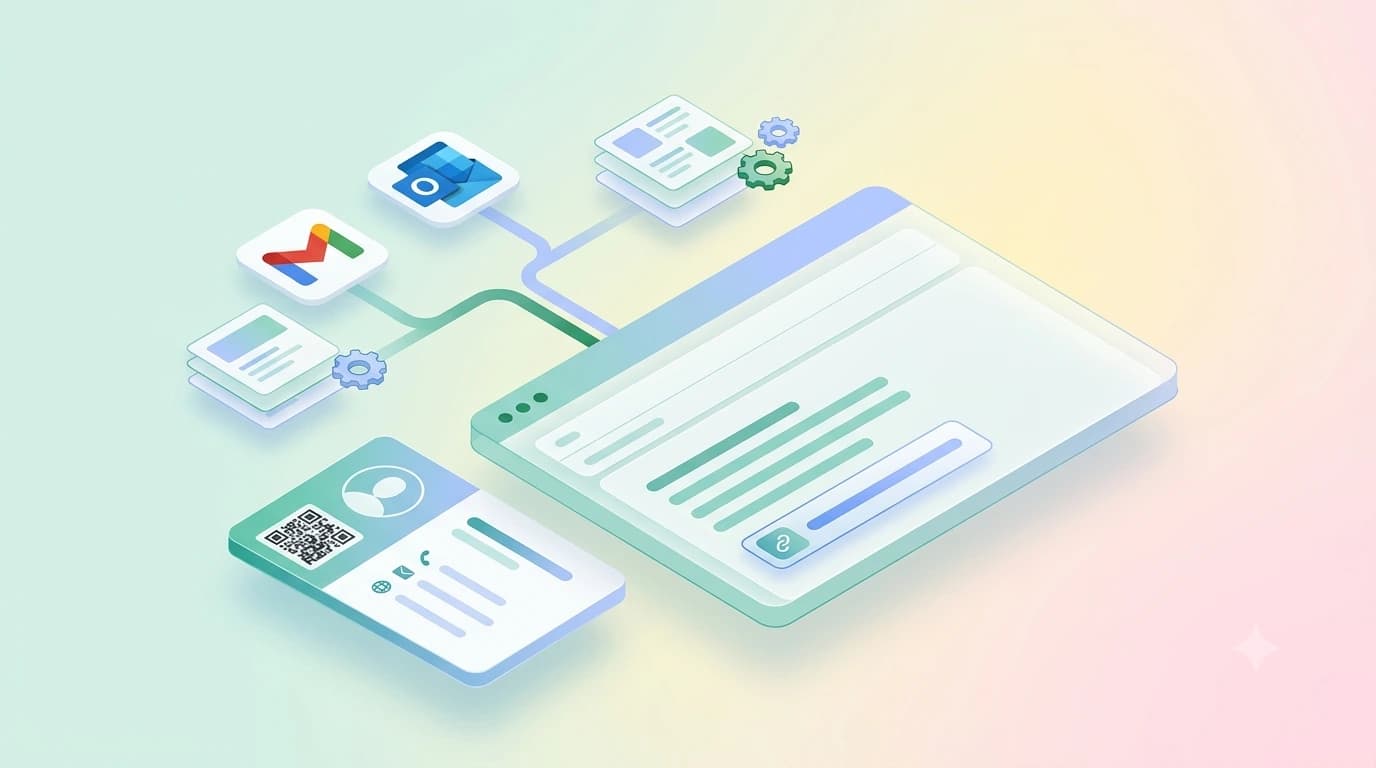

An email signature with digital business card attached is your normal sign-off plus one live link — the URL or QR of your digital profile — so anyone reading your mail can open your full contact card and save your details in one tap. It takes about five minutes to set up in Gmail or Outlook, and it never needs reprinting when your number changes.
Below: the exact steps for Gmail and Outlook, a clean email signature format that survives mobile screens, copy-ready email signature templates for three common roles in India, and an honest look at whether an email signature generator is worth the trouble.
What is an email signature with digital business card?
A plain email signature is the text block your mail client appends to every message: name, role, company, phone. Adding a digital business card puts one live link on top of that — a profile URL, or a small QR image — so the reader gets your photo, socials, WhatsApp, address, payment details and anything else you have added, without you trying to squeeze it all into six lines of text. The practical difference shows up months later: change your number, and the signature in mail you sent last year still resolves to the correct details, because the link points at a profile you keep editing.
How do you add a digital business card to your email signature?
Five steps, done once:
- Create your digital card and copy its public link. If you do not have one yet, you can make a visiting card online free and the profile URL is generated for you.
- Open your mail settings. Gmail: Settings → See all settings → General → Signature. Outlook: File → Options → Mail → Signatures. On the Gmail mobile app: Settings → your account → Mobile Signature.
- Type the text block first: full name, role, company, one phone number, city. Resist the urge to add more.
- Add one line underneath — something like "My digital card →" — and hyperlink those words to your profile URL. Hyperlinked text survives copy-paste and dark mode far better than a pasted raw URL, and it looks deliberate.
- Optional: add your QR as a small image, roughly 120–150 px wide. Smaller than that and phone cameras start struggling — the QR code size rules apply on screen too, not just in print.
Then send yourself a test mail from a different account and open it on a phone. Images and spacing are the two things that break between desktop and mobile, and you will only see it in a real inbox.
What is the correct email signature format?
A working email signature format is four lines and one link. Anything longer gets skimmed past, and on a phone it pushes your actual message off the screen:
- Line 1 — Full name, and a credential only if it is genuinely relevant (Dr., CA, Adv.).
- Line 2 — Role, company name.
- Line 3 — One phone number and the city. Two numbers means the reader picks the wrong one.
- Line 4 — Your digital card link, as hyperlinked text.
- Optional — a company logo under 200 px wide, or your QR. Not both.
Skip the quote, the legal disclaimer nobody reads, the "Sent from my iPhone" leftovers, and the four social icons. Every element you remove makes the one link you actually want clicked more likely to get clicked.
Email signature templates you can copy
Three email signature templates that hold up in Indian business mail. Replace the placeholder text and keep the line breaks as they are:
- Freelancer or consultant — "Priya Nair / Brand & Content Consultant / +91 XXXXX XXXXX · Mumbai / My digital card →". Keeps it personal; the card carries the portfolio, rates page and WhatsApp button.
- Shop or agency owner — "Rakesh Mehta / Owner, Mehta Interiors / +91 XXXXX XXXXX · Pune / Catalogue, address & reviews →". The link label describes what is behind it, which lifts clicks more than the word "profile" does.
- Salaried professional — "Ananya Rao / Senior Manager – Operations / Acme Logistics Pvt Ltd / +91 XXXXX XXXXX / My digital card →". Company line goes on its own row when the employer name is long.
Is an email signature generator worth using?
Short version: it depends what you need the generator to do. We break that down in our email signature generator guide; the longer answer follows here.
An email signature generator is a form that outputs HTML you paste into Gmail or Outlook; some tools sell the same thing as a builder. It earns its keep if you want a designed layout with a logo, a divider and aligned columns, because hand-coding that in a settings box is miserable. Tools that draft the wording for you add a step that matters less than the marketing suggests: a good signature is four lines and you already know your own job title.
Two things to check before you commit to one. First, where your logo is hosted: many builders serve it from their own servers, so if the tool shuts down or your free trial lapses, every mail you have ever sent shows a broken image. Second, the free tier — several add their own branding line to your signature, which is a strange thing to have under your name in a client mail. Self-hosting the image, or using a plain text link, avoids both.
Gmail vs Outlook: what actually renders
Gmail clips long threads and hides repeated signatures behind the "…" button, so a heavy signature disappears from view on the second reply onwards. Outlook desktop blocks external images by default until the recipient clicks "download pictures", which means a QR-only signature shows nothing at all to a cautious corporate reader. A hyperlinked text line survives both. That is the practical case for keeping a digital business card link as the primary element and treating the QR as a bonus rather than the whole mechanism.
Mistakes that make an email signature look unprofessional
- Coloured or decorative fonts. They render as fallback text on half the devices that receive them.
- A signature longer than the email. Common in first-time outreach and it reads as trying too hard.
- A giant QR block. Large enough to scan from a printed page is far larger than it needs to be on screen.
- No mobile signature set. Most Indian professionals send more mail from the phone than the laptop, and the app keeps a separate signature field that people forget to fill.
- An outdated number left in place. This is the failure the whole approach exists to fix.
One link that stays correct
The point of putting a digital business card in your email signature is that the details behind it stay editable after the mail has left your outbox. You can start free, paste the link into your signature today, and add the same profile to an NFC visiting card later so the mail version and the in-person version point at exactly the same place.