
NFC business cards seem fancy until you use one for the first time - then you'll never go back to paper. There's no app to download, no QR code to scan, no typing. You hold your card near someone's phone and your full profile opens on their screen in under two seconds. If you've just received an NFC business card in India or you're thinking of getting one, this guide covers exactly how it works, how to share it confidently, and what to do when something doesn't go right.
This is a complete guide on how to use NFC business card profiles in 2026 — written so a total newbie can follow it. We'll cover how to use NFC business card step by step, and how to use NFC business card for beginners who have never tapped one before.
How NFC Business Cards Work
NFC stands for Near Field Communication. Your card contains a small chip (you can't see it - it's embedded in the card body) that stores a single piece of data: a URL pointing to your digital profile. New to the technology itself? Start with what NFC in mobile phones actually means.
When you hold the card within a few centimetres of an NFC-enabled phone, the phone detects the chip, reads the URL, and shows a notification on screen. The recipient taps that notification and your profile opens in their browser - no app, no account, no waiting.
Your profile is web-hosted, not stored on the chip. This means the card itself never "runs out" of data, never expires, and never needs to be replaced because you changed your phone number or job title. Every time someone taps your card in the future, they see the most current version of your digital business card - whatever is live on your profile at that moment.
The chip in the card is read-only from the recipient's side. They cannot modify it. It simply points their phone to your profile URL.
How to Use NFC on Your Phone
Your card is only one half of the exchange — the other half is the phone that reads it. NFC use in mobile phones is now standard on almost every Android and iPhone sold in India, and it powers a lot more than business cards.
How do I use NFC on my phone?
On Android, open Settings → Connected devices → NFC and toggle it on. On iPhone 7 and later running iOS 13 or newer, NFC background reading is always on and needs no setting change at all. Once it is enabled, hold the top edge or centre-back of your phone within about four centimetres of a card or tag and a notification appears.
How can I use NFC on my phone beyond business cards?
NFC usage in mobile devices covers contactless payments through tap-and-pay UPI, Google Pay and Samsung Pay, metro and transit cards, hotel key cards, office access badges, and instant pairing with Bluetooth speakers or earbuds. NFC used in mobile payments is the most common everyday case in India, and reading a business card tag uses exactly the same hardware.
How is NFC used in everyday life?
Common NFC uses include paying at a card machine, unlocking an office door, tapping through a metro gate, checking an authenticity tag on a product, and sharing a digital profile. Every one of them works the same way: a short-range chip hands a small piece of data to a reader the moment the two come close enough.
NFC usage is deliberately short-range — roughly four centimetres — so nothing can be read from across a room. Your card stores only a profile URL, never your contact list, and the exchange runs one way: their phone reads your card, and your card reads nothing back from their phone.
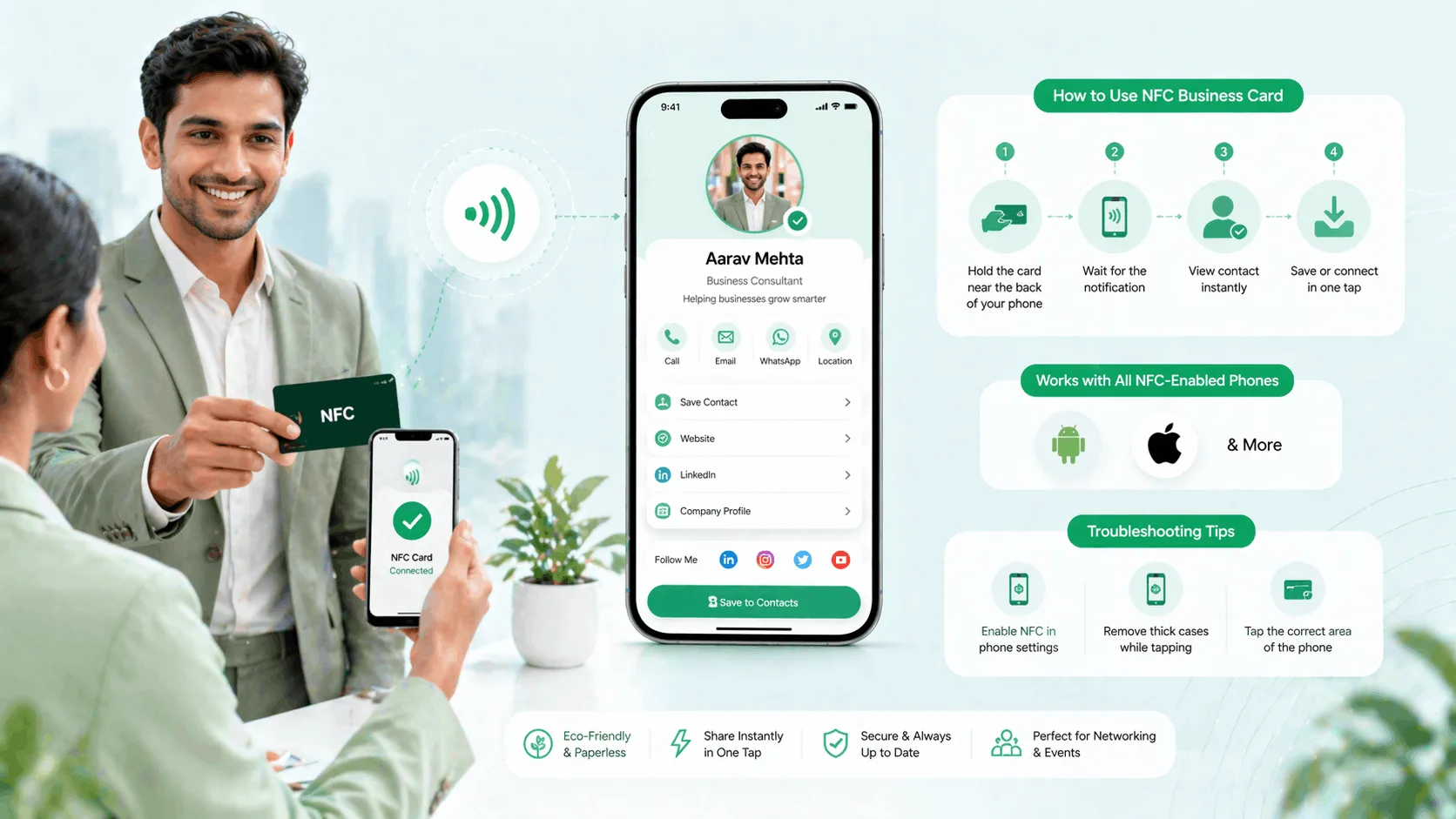
Step-by-Step: Sharing Your NFC Business Card
Here's exactly how to use NFC business card step by step India professionals can follow at any event — a practical how to use NFC business card guide, not theory.
Step 1: Hold your card near the recipient's phone
Hold the card flat and bring it to within 2–4 centimetres of the back of their phone. The NFC sensor on most Android phones is located near the centre-back or top-back. On iPhones, it's at the top edge.
You do not need to press the card against the phone. Proximity is enough. If nothing happens after two seconds, move the card slowly around the back of the phone until it triggers - you're finding the sensor location on their specific model.
Step 2: The recipient sees a notification
A small notification appears at the top of the recipient's screen - something like "NFC tag detected" or a direct URL notification. On some phones, the browser opens automatically.
Step 3: They tap the notification to open your profile
One tap on the notification opens your full ProfileTap profile in their mobile browser. They see your name, photo, designation, contact buttons, links, and everything else on your profile - instantly.
Step 4: They save your contact or interact with your profile
From your profile, they can tap "Save to Contacts" to add you directly, tap "WhatsApp" to start a conversation, tap "Book a Call" to schedule time, or tap any link you've added. Everything happens in their browser with no sign-up required on their side.
Step 5: You see it in your analytics
Log into your ProfileTap dashboard. NFC taps register as profile views in your analytics. You'll see when the tap happened and can track whether it resulted in further engagement (link clicks, contact saves). This is information a paper card exchange can never give you.
Troubleshooting: When the Tap Doesn't Work
The phone didn't react at all. NFC may be switched off. Ask the person to check: on Android, go to Settings → Connected Devices → NFC and toggle it on. On iPhone, NFC is always on for background reading (iPhone 7 and later, iOS 13+) - no setting change needed.
Older Android phones (pre-2015). Some budget or older Android devices don't have NFC hardware at all. In this case, show your QR code instead -it's on your ProfileTap profile and works on every smartphone with a camera. Not sure which handsets carry the chip? Our guide to phones with NFC in India maps it brand by brand.
iPhone 6 or earlier. These models don't support NFC tag reading. Same solution: switch to QR code sharing. Keep your QR easily accessible - save a screenshot of it to your phone's camera roll.
The phone reacts but the profile doesn't load. This usually means the recipient's phone is not connected to mobile data or Wi-Fi. The NFC tap and QR scan don't require connectivity, but the profile page itself does. Ask them to turn on mobile data and try the link again.
The card is in a case or wallet. Metal cases and thick leather cases can block NFC signals. Ask the recipient to remove their phone from the case, or hold your card at a slight angle near the edge of the case.
NFC Card Tips for Indian Networking Events
Introduce the tap, don't assume. Many Indian professionals have not used an NFC card before. Say "Let me just tap this to your phone" before you do it. Frame it as something they'll be doing too in a few months. Most people are genuinely impressed.
Know where the sensor is on common phones. Samsung Galaxy phones (the most common Android in India) have their NFC sensor in the centre-back. Redmi and Xiaomi phones have it near the top-back. OnePlus phones near the centre. For iPhones, the top edge. If you know the person's phone brand, you can guide the tap more precisely.
Keep your card accessible, not buried in your bag. The speed of an NFC tap is its entire advantage. If you spend 20 seconds fishing for the card, you've lost the moment. Keep it in your front shirt pocket, a card holder in your jacket, or the outer slot of your bag.
Use it at the right moment. At conferences, startup events, CII and FICCI meetings, and startup ecosystem events in cities like Bangalore, Hyderabad, and Pune - these are the right contexts. At a family business meeting or a traditional trade fair where technology isn't expected, lead with a conversation and offer the tap as a follow-up.
Follow up the same day. NFC taps show up in your analytics. Use that signal. If you had a great conversation with someone and you see their tap in your dashboard, send a WhatsApp follow-up that evening. The tap tells you they were engaged enough to open your profile - that's a warm signal.
NFC vs Sharing a WhatsApp Contact
Many Indian professionals default to sharing their contact via WhatsApp: you type your number into a chat or send your contact card. It works, but it carries limitations that NFC sharing doesn't.
A WhatsApp contact share only contains what's in your phone's contact entry: name, number, maybe email. An NFC tap opens your full profile - photo, bio, multiple links, social handles, booking button, review link, and everything else you've added.
A WhatsApp contact share is one-directional. Once sent, it's static. If you change your number or update your designation, the contact sitting in their phone is wrong forever. An NFC tap always points to your live profile, which reflects every update automatically.
A WhatsApp share is also informal. An NFC tap is a deliberate, professional exchange - it signals that you have a well-prepared professional presence and that you take networking seriously. In a competitive business environment, that signal matters.
Try ProfileTap Free
ProfileTap gives you an NFC business card and digital profile that works via tap, QR, and direct link - all pointing to one profile you update anytime. Set up your profile free today.
That's how to use NFC business card sharing end to end. For the India context, this how to use NFC business card India walkthrough covers tap, troubleshooting, and follow-up.
Create your free digital business card
Related reading: NFC Business Card vs QR Code · How to Make a Digital Business Card · How to Enable NFC on Android